
Key Takeaways
- Designers spend 3-5 hours weekly managing and retrieving logo assets—integrating your Sinqlo logo library into Figma cuts this time by 80%
- The Sinqlo Figma plugin lets you search, preview, and insert logos without leaving your canvas
- Your Sinqlo logo library stays perfectly synced across all projects thanks to Smart Links that auto-update
The Logo Library Problem Every Figma Designer Faces
You’re deep in a Figma project. You need your client’s logo. So you:
- Pause your work
- Open a new tab
- Navigate to Google Drive (or Dropbox, or OneDrive)
- Dig through folders
- Find the logo ZIP file
- Download it
- Unzip it
- Hunt for the right format
- Come back to Figma and upload it manually
That’s nine steps for something that should take five seconds.
Every Figma designer faces this same friction. You’re working in what’s arguably the best design tool ever built, but the moment you need a logo, you’re ejected into folder navigation hell. And if you’re working with multiple clients, you’re doing this dance dozens of times per week.
This is where a Sinqlo logo library changes everything. It brings your entire logo collection directly into Figma, organized, searchable, and always up to date.
What Is a Sinqlo Logo Library?
A Sinqlo logo library is your centralized, organized collection of all client logos—stored in one place, accessible everywhere, and automatically kept in sync.
When you upload a logo to Sinqlo, the system:
- Auto-generates variations (primary, secondary, monochrome, icon versions) using AI
- Extracts color palettes (RGB, CMYK, Hex, Pantone)
- Exports every format (SVG, PNG, WebP, PDF) in seconds
- Creates a permanent Smart Link that never expires and updates automatically when you change the logo
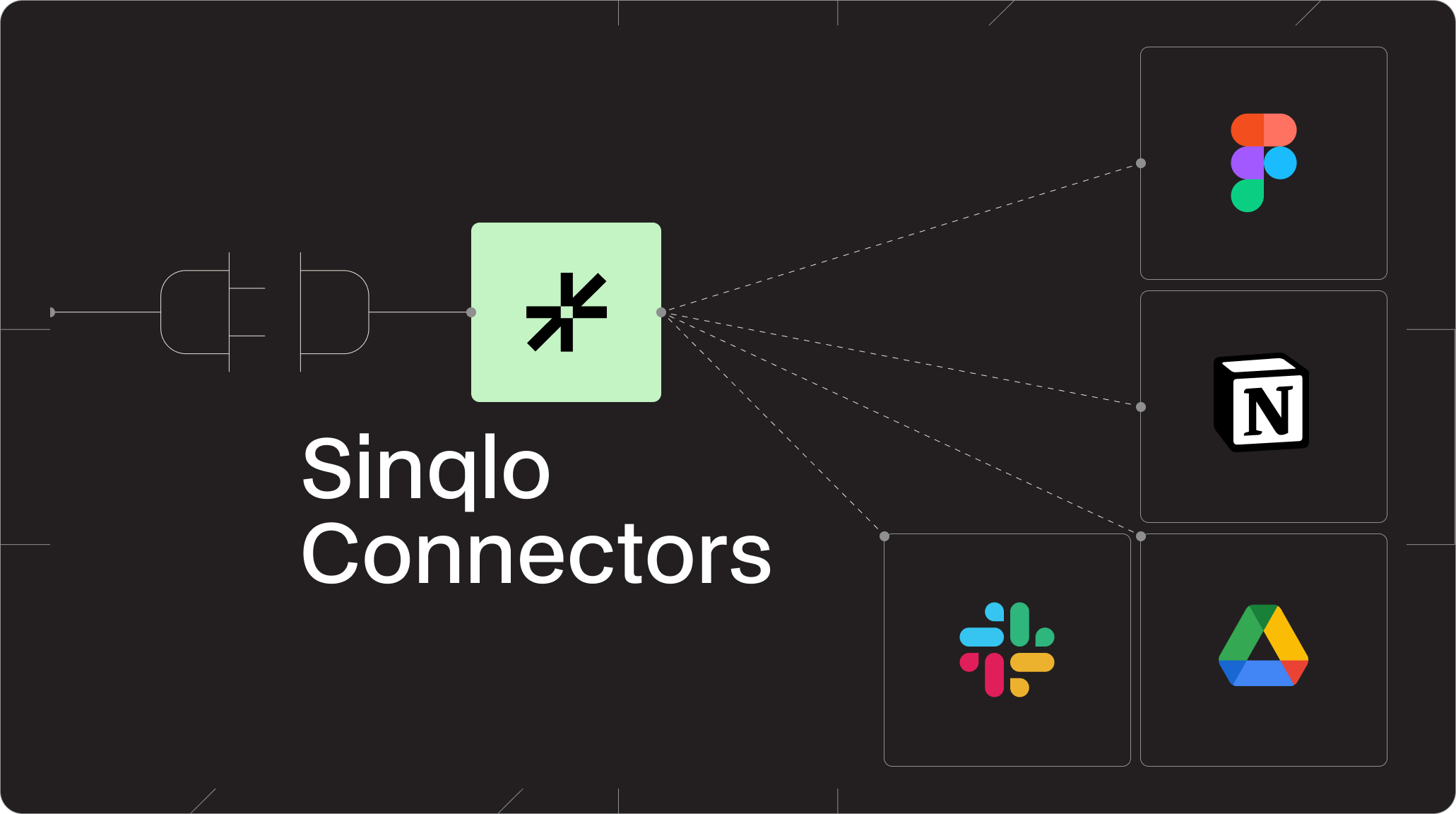
All of this is managed in your Sinqlo dashboard. But here’s the key: your Sinqlo logo library isn’t locked away in a separate tool. It’s accessible from Figma, Slack, Notion, Google Drive, and everywhere else your team works.
Think of it as a living, breathing logo database that follows you wherever you design.
How the Sinqlo Figma Plugin Connects You to Your Logo Library
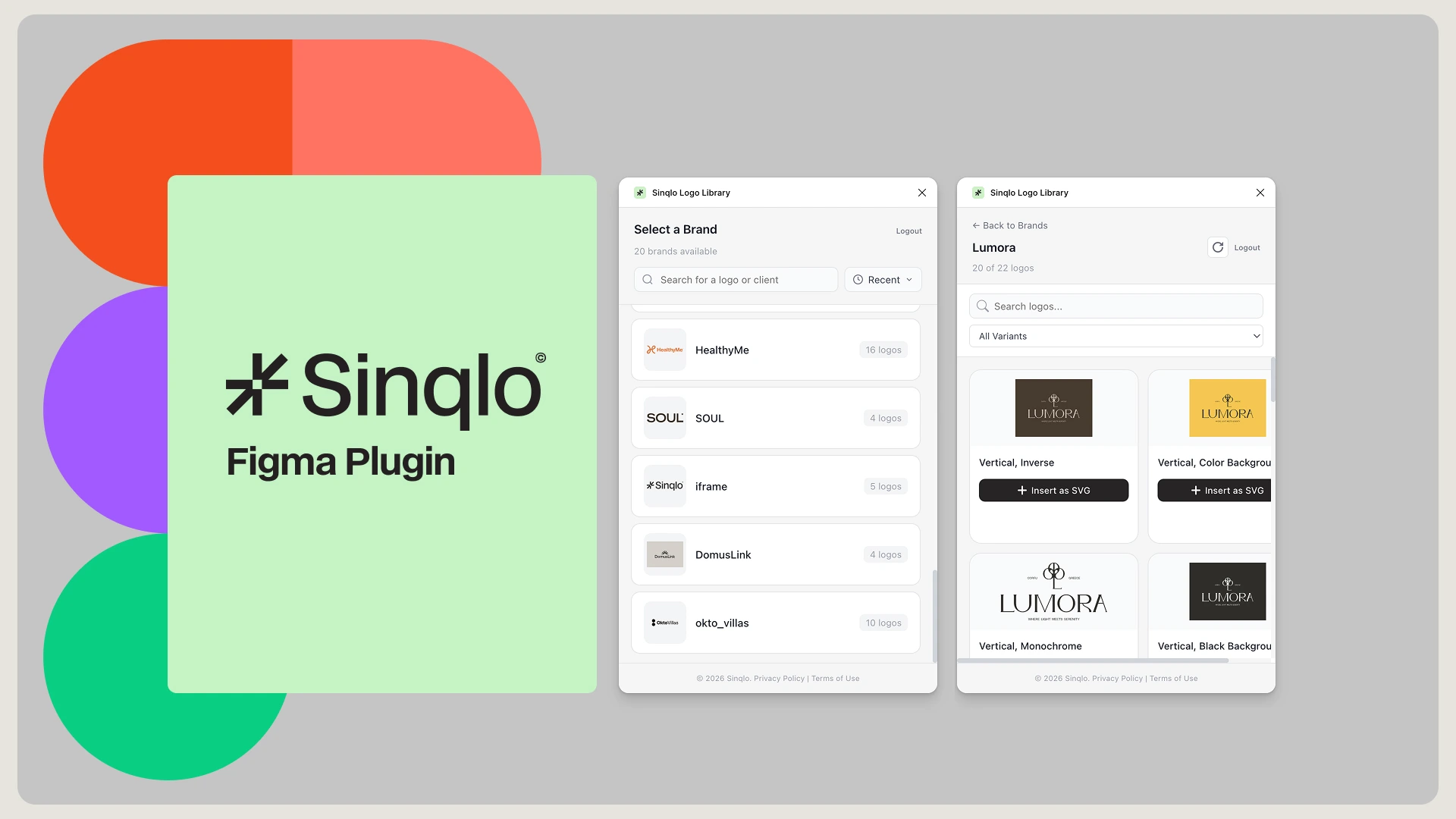
The Sinqlo Figma plugin is a direct bridge between your design canvas and your logo library.
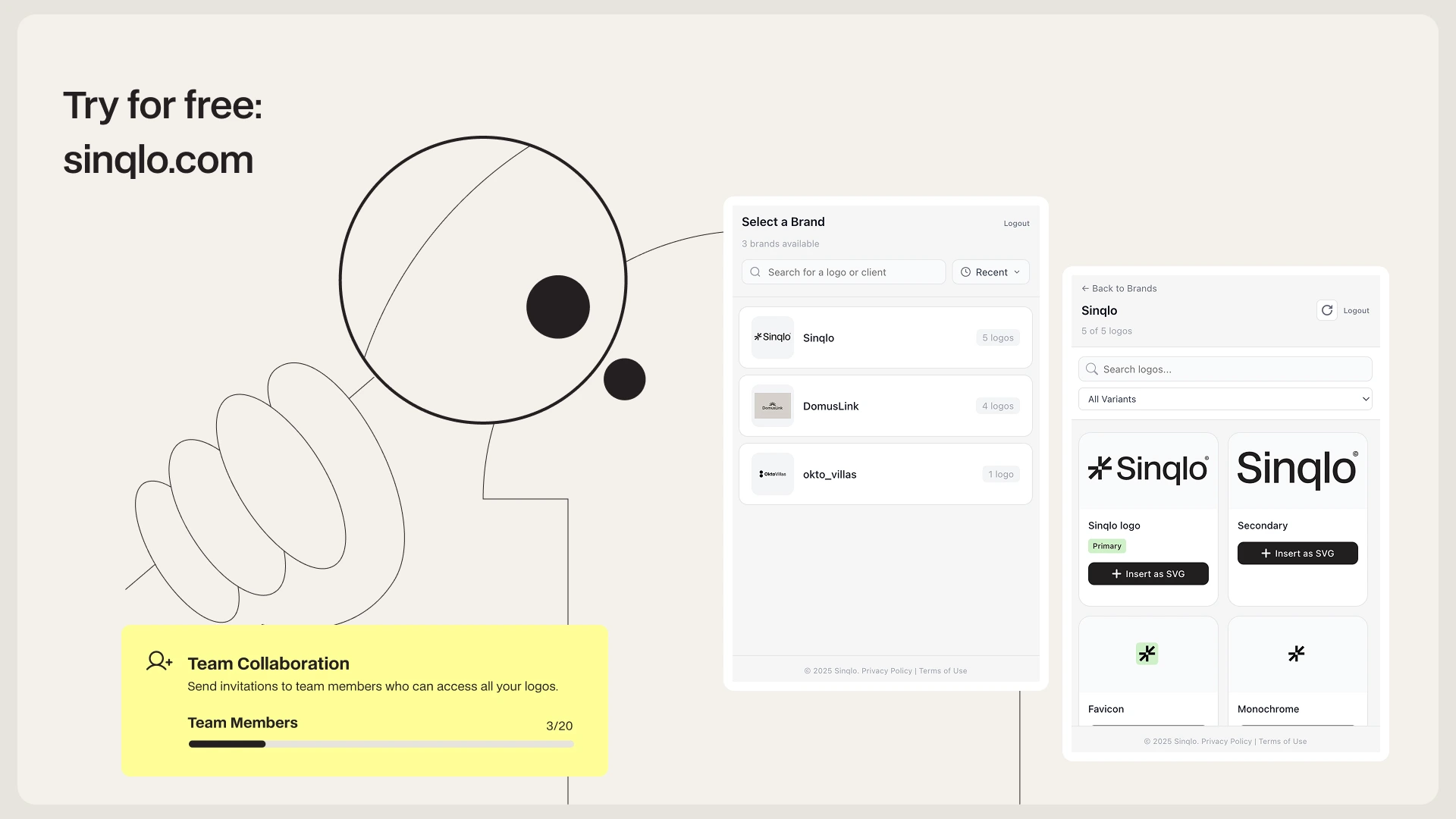
Install the plugin → Authenticate with Sinqlo → Your entire logo library appears in a searchable panel inside Figma.
From that panel, you can:
- Search by client name or brand (instant fuzzy search—start typing and results appear in real-time)
- Filter by logo type (primary, secondary, monochrome, icon, horizontal)
- Preview all variations in a clean grid layout
- See available formats at a glance (SVG, PNG, WebP, PDF)
- Insert directly onto your canvas in one click
- Stay synced automatically—your Sinqlo logo library updates in real-time as you upload new logos or variations
No downloads. No folder navigation. No wondering if you have the latest version. Your logo library is just there, in Figma, where you need it.
Step-by-Step: Accessing Your Sinqlo Logo Library in Figma
Step 1: Install the Sinqlo Figma Plugin
Open any Figma file → Click Plugins (bottom left) → Search for “Sinqlo” → Click Install on the official Sinqlo Figma plugin.
The Sinqlo panel appears as a side menu in your workspace. Installation is instant.
Step 2: Authenticate With Your Sinqlo Account
Open the Sinqlo panel → Click Sign In → Log in with your Sinqlo credentials.
This grants the plugin read-access to your entire logo library. No API keys. No token copying. Just one login.
Step 3: Browse Your Logo Library (It Appears Instantly)
As soon as you log in, your Sinqlo logo library populates the panel.
You see:
- All your logos organized in a visual grid
- Client names displayed for each logo
- Project dates so you can find recent uploads fast
- Small preview thumbnails of each logo’s primary version
Your entire logo library is now in Figma. The hard part—organizing and managing your logos—is already done in Sinqlo. Now you’re just accessing it.
Step 4: Search Your Logo Library by Brand Name
Type in the search box. As you type, your Sinqlo logo library filters in real-time.
Search for “Nike,” see all Nike logos and variations instantly. Search for “Q3 rebrand,” see every logo you uploaded in Q3. The search is fast—built to keep you in design flow, not pull you out of it.
Step 5: Preview All Variations of a Logo
Click any logo in the grid. A detail panel opens showing:
- Primary logo (full color)
- Secondary variations (monochrome, reversed, icon versions)
- Color palette extracted from the logo (RGB, CMYK, Hex)
- Available formats (SVG, PNG, WebP, PDF)
- File sizes and dimensions for each variation
This is where your Sinqlo logo library shines. Instead of downloading a ZIP with 20 files and guessing which one is which, you see every variation in one organized view.
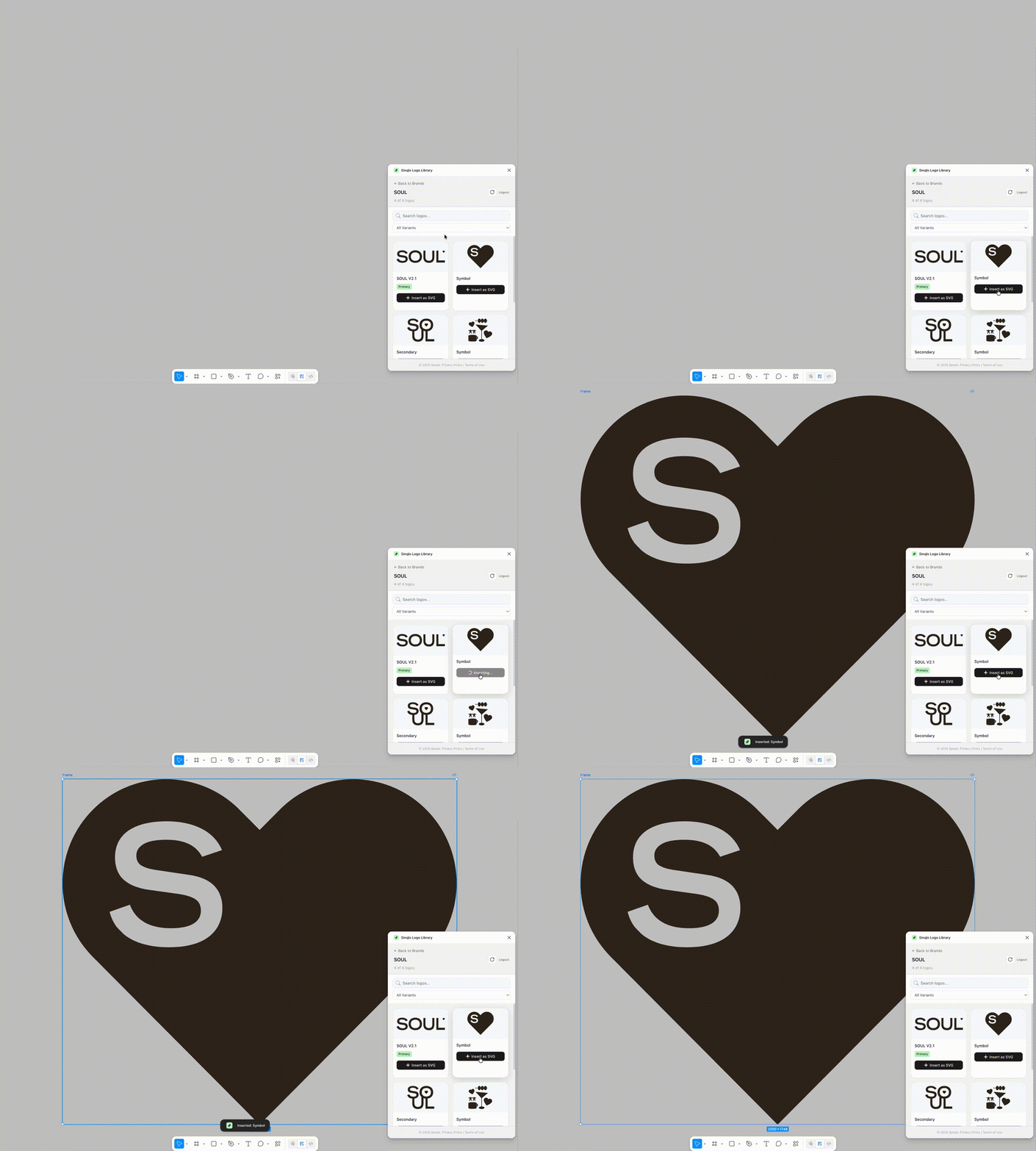
Step 6: Insert a Logo Directly Into Your Canvas
Click the logo variation you need → Click Insert → It lands on your Figma canvas as a frame, ready to use.
No download dialog. No file management. The logo appears on your canvas in full resolution, ready to scale, align, and design around.
If you need a different format (e.g., you realized you need PNG instead of SVG), the panel still shows all options. Click the format you prefer and re-insert if needed.
Step 7: Update a Logo in Your Sinqlo Logo Library (Everyone Sees It)
Let’s say your client approves a logo redesign. You upload the new version to your Sinqlo dashboard.
Automatically, every Figma file that references that logo sees the updated version. Smart Links ensure perfect sync—no manual file swaps, no “Did everyone get the new version?” messages in Slack.
If you’re working with team members in the same Figma file, you can even turn on Real-Time Collaboration in Sinqlo (Studio and Agency plans). Everyone sees the logo library update in real-time.
Real-World Example: Building Brand Guidelines Using Your Sinqlo Logo Library
Here’s how a designer actually uses the Sinqlo Figma plugin to access their logo library:
The Task: Create a brand guidelines document for a new client.
Without Sinqlo:
- Open Google Drive
- Find the client’s logo folder
- Download the ZIP
- Unzip it
- Open each PNG in Figma one at a time
- Spend 10-15 minutes just getting logos into Figma
With Sinqlo Logo Library:
- Open Figma file for brand guidelines
- Open Sinqlo panel
- Search client name (appears instantly)
- Click through variations
- Insert all 5 logo variations onto the canvas in 2 minutes
- Client approves a redesign later
- Designer uploads new logo to Sinqlo
- Figma file automatically shows the updated logo everywhere it’s used
- Client gets the latest guidelines without the designer doing any manual re-uploading
The time saved: 13 minutes per project. Multiply that by 15-20 client projects per quarter, and you’re saving 3-4 hours per quarter just on logo logistics.
Why Organizing Your Logo Library in Sinqlo Matters
You might be thinking: “I can just put my logos in a Figma shared library and be done.”
Fair point. But there’s a critical difference between design component libraries and logo management libraries:
Figma Libraries (Design Components)
Best for: Internal design system scaling (buttons, cards, typography, layout patterns)
Figma libraries keep your team’s design patterns in sync. When you update a button component, every file using that button updates.
Limitation: Figma libraries are for design collaboration. They assume your team is working in Figma. But logos live in the real world—clients need them in print, web, email, social media, and more. A Figma component doesn’t generate a print-ready PDF or a web-optimized WebP.
Sinqlo Logo Library (Source of Truth)
Best for: Storing, organizing, and sharing logos across all your tools and deliverables
- Auto-generates all formats (SVG, PNG, WebP, PDF)
- Extracts color palettes automatically
- Creates variations with AI (so you’re not manually creating monochrome versions)
- Works with Figma, Slack, Notion, Google Drive, email, client portals
- Generates Smart Links that clients can access forever (even if you update the logo)
- Integrates with your developer handoffs (WebP formats for web performance)
A Figma component is for your design team. A Sinqlo logo library is for your entire business.
The best setup? Use both. Keep your design components in Figma for internal work. Keep your logos in your Sinqlo logo library for everything else.
How Your Sinqlo Logo Library Stays Synced Across Your Team
If you’re running an agency or multi-designer studio, here’s where your Sinqlo logo library becomes invaluable:
The scenario: You have three designers, two account managers, and a developer. All of them need access to your logo library—but not everyone needs to edit it.
In Sinqlo:
- Create team workspaces with role-based permissions
- Designers: Edit and upload logos
- Account managers: View-only access to client logos
- Developer: Download optimized formats for web
In Figma (via the plugin):
- Every team member opens the Sinqlo plugin
- They see the same logo library
- Permissions carry over—editors see the upload button, viewers don’t
- When a logo is updated, every Figma file in your workspace sees the change in real-time
This eliminates the chaos of “I have version 2.3 and you have version 2.1” or “Wait, did the logo get updated?” Everyone has the single source of truth, accessible from Figma.
Best Practices for Managing Your Sinqlo Logo Library
1. Name Your Logos Clearly
When you upload to Sinqlo, name each logo by client and project. “Nike_Rebrand_2025_v2” is searchable. “Logo” is not.
Your Sinqlo logo library’s searchability depends on good naming. Spend 30 seconds on naming and save yourself 30 minutes of digging later.
2. Tag by Brand and Project Date
Sinqlo lets you tag logos. Use tags like “Q1_2025,” “Retail_Division,” “Social_Media_Kit.” When you’re searching your logo library in Figma, filtered results appear instantly.
3. Let AI Generate Variations
Don’t manually create monochrome versions or smaller file sizes. Upload your primary SVG to Sinqlo, and the AI Assistant generates:
- Monochrome version
- Reversed/inverse version
- Icon/mark-only version
- Multiple sizes and formats
All in seconds. This is one of the biggest time-savers in your Sinqlo logo library.
4. Share Smart Links (Not ZIP Files)
When a client needs their logos, don’t email a ZIP file. Share the Smart Link to their branded landing page in your Sinqlo logo library.
They can download any format they need, and the link never expires. If you update the logo later, they automatically see the new version without you re-sending anything.
5. Use the Figma Plugin as Your Primary Access Point
Instead of opening your Sinqlo dashboard to find a logo, open Figma. The Sinqlo logo library is right there. It’s faster, and you stay in design flow.
Sinqlo Logo Library vs. Traditional Logo Storage
Here’s how different approaches to managing your logo library compare:
| Method | Search Speed | Version Control | Format Options | Team Sync | Client Access |
|---|---|---|---|---|---|
| Google Drive folders | Slow (manual navigation) | Manual renaming | What you upload | Poor (confusing structure) | Email link (no updates) |
| Figma shared library | Fast (within Figma) | Automatic (components) | Only what you design | Good (real-time) | Limited (Figma-only) |
| Sinqlo Logo Library | Fast (search + filter) | Automatic (Smart Links) | Every format (SVG/PNG/WebP/PDF) | Excellent (real-time team sync) | Lifetime Smart Links |
Your Sinqlo logo library wins on every metric because it’s built specifically to solve the logo management problem. It’s not a folder system (too slow). It’s not a design component library (too limited). It’s a logo library designed for the real world.
What Happens When You Update a Logo in Your Sinqlo Library
This is where Smart Links become magic.
Scenario: Your client approves a rebrand. You upload the new logo to your Sinqlo dashboard.
Immediately:
- All logo variations update (monochrome, reversed, icon)
- All formats regenerate (SVG, PNG, WebP, PDF)
- Your Figma plugin shows the updated logo (next time you refresh)
- Your client’s Smart Link shows the new logo
- Your Slack channel (if integrated) shows the update
- Your Notion documentation updates (if embedded)
You upload once. Everything updates everywhere.
This is why a dedicated Sinqlo logo library beats folder-based management by miles. Folders require manual updates. Your Sinqlo logo library updates automatically.
Getting Your Team on the Same Page With Your Logo Library
The hardest part of managing logos isn’t the logos—it’s keeping your team aligned.
With a Sinqlo logo library accessible via Figma:
- Designers stop asking “Is this the latest version?” because the Figma plugin always shows the current version
- Account managers can share Smart Links with confidence knowing clients will always see the latest logo
- Developers get web-optimized formats (WebP) without asking designers to re-export
- Clients never receive outdated logos because Smart Links auto-update
Alignment happens automatically. Your Sinqlo logo library is the single source of truth—accessible from Figma, Slack, Notion, and email.
Start Building Your Sinqlo Logo Library Today
If your team spends time searching for logos, managing formats, or explaining versions to clients, a proper logo library solves all three problems instantly.
Here’s how to start:
- Create a free Sinqlo account (no credit card)
- Upload your first logo (SVG file, drag and drop)
- Watch AI-generate variations (all formats auto-created)
- Install the Figma plugin (from the Figma community)
- Access your logo library from Figma (search and insert in seconds)
- Share a Smart Link with your client (it updates forever)
Your Sinqlo logo library becomes the source of truth. Your team accesses it from Figma. Clients get logos that never go out of date.
Stop managing logo chaos. Build your Sinqlo logo library and simplify your entire workflow, starting today