The Sinqlo Brand Asset Management Figma Plugin
Sinqlo’s Figma plugin brings brand asset management directly into the canvas. Instead of alt-tabbing to Drive or squinting at an old brand guide PDF for a hex code, you browse your logos, illustrations, and approved colors from inside Figma and drop them straight onto the artboard. It’s built for studios running more than one client brand, where the real risk isn’t losing a file. It’s grabbing the wrong version of one.
Key Takeaways: Brand Asset Management Figma Plugin
- Browse, preview, and place logos and illustrations from your Sinqlo library without leaving Figma.
- Add approved brand colors to your file’s local styles in one click, instead of copying hex codes off a PDF.
- Switch between brand libraries per client, instead of switching Drive folders.
- Installs free from Figma Community and connects to whatever Sinqlo plan you’re already on.
- Everything you drop into a Figma file stays tied to the same library your client sees through their Brand Link.
What the Sinqlo Brand Asset Management Figma Plugin Does
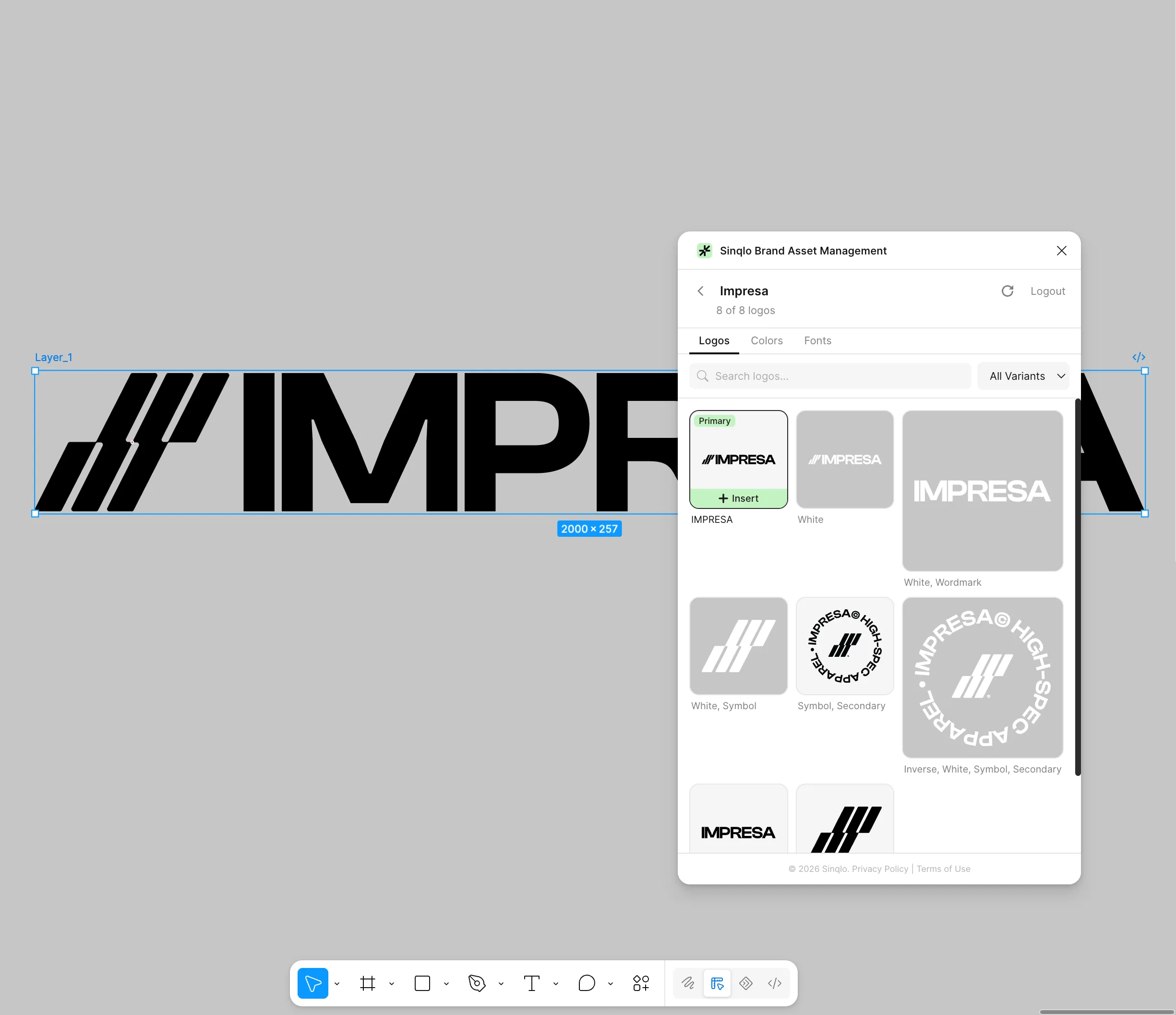
The plugin has two jobs. The first is the Logo Library: browse your brand’s collections, preview every variation, and drop the exact vector logo or illustration onto your artboard. You don’t export it from somewhere else first, and you don’t stop mid-design to figure out which version has the transparent background.
The second is Instant Brand Colors. The plugin adds approved brand colors directly to your file’s local styles with a click. You stop retyping a hex code from a PDF, and you stop trusting your memory of what “the blue” was supposed to be.
If you’ve already set up Sinqlo’s Figma access for your library (see our guide on accessing your Sinqlo logo library directly in Figma), the plugin builds on that same connection. It just puts it on the canvas instead of in a separate panel.
Why This Matters for Studios Managing More Than One Brand
A studio with three or four active client brands doesn’t have one scattered library. It has three or four. Each one lives in its own Drive folder, with its own naming quirks, and its own out-of-date PNG someone forgot to swap out months ago. That’s the problem Sinqlo manages away in general, and the Figma plugin is where it shows up during actual design work, not just at handoff.
Every export you skip and every hex code you don’t have to hunt down adds up. Design teams routinely lose 30–45 minutes per project to this kind of manual asset-wrangling. Multiply that across every client on the roster and it stops being a minor annoyance. It’s weeks a year.
The same discipline that keeps a brand asset management workflow organized with AI agents applies here: one source of truth, used consistently, beats a folder structure everyone half-remembers.
How to Install the Sinqlo Figma Plugin
Installing it takes about a minute:
- Open the Sinqlo Brand Asset Management plugin on Figma Community.
- Click Try it out to open it in a new draft, or Save to add it to your saved plugins for later.
- Inside any Figma file, right-click the canvas, hover Plugins, and select Sinqlo Brand Asset Management. Or press
Cmd+/on Mac (Ctrl+/on Windows) and search “Sinqlo.” - Sign in to connect your Sinqlo library, then start browsing logos and colors from the plugin panel.
The exact sign-in step may vary depending on your Sinqlo plan. Follow the plugin’s own prompts rather than assuming a fixed flow, since that’s the part most likely to change as Sinqlo updates it.
The Old Way vs. the Plugin
Old way: open Drive, find the client folder, open the sub-folder for logos, guess which file is current, export it again because it’s the wrong format, copy the hex code from a PDF, hope you copied it right.
New way: right-click the canvas, open Sinqlo, drop the logo, click the color. Same result, and you never leave Figma or guess at a color.
It’s the same shift Sinqlo already makes at delivery (see Stop Sending Zips: Smarter Ways to Deliver Logo Assets), just moved earlier in the process, before a client ever sees the file.
Where This Fits in Your Sinqlo Library
The plugin isn’t a separate tool bolted onto your workflow. Anything you drop into Figma comes from the same library your client already has access to through their Brand Link, the permanent URL that shows them the current version of every asset. Update the source logo in Sinqlo, and both sides update: the file your client sees, and the version available inside the plugin next time you open it.
For teams working from a shared Sinqlo workspace (Team Mode), that also means whoever opens the plugin sees the same synced library as everyone else on the account. Nobody’s pulling in a color a teammate already replaced last week.
FAQ: Sinqlo Figma Plugin
Is the Sinqlo Figma plugin free to install?
Yes. Installing it from Figma Community costs nothing. It connects to whatever Sinqlo plan you’re already on, from Free up through Agency.
Do I need a Sinqlo account to use it?
Yes. The plugin pulls from your existing brand library, so you need a Sinqlo account with at least one brand already set up.
Does it replace exporting logos manually in Figma?
For anything already stored in Sinqlo, yes. You drop in the finished asset instead of re-exporting it or hunting for a version you already made.
Can my whole team use it on the same file?
Yes, if you’re on Team Mode. Everyone on the shared workspace sees the same synced library inside the plugin.
Does it work if I manage more than one client brand?
Yes. Switch between brand libraries inside the plugin instead of keeping a separate Drive folder per client.
The plugin doesn’t change what Sinqlo does. It changes where you do it: inside the file you’re already working in, instead of a browser tab you keep switching back to. Install the plugin from Figma Community, or see how the rest of your library, including what your client sees on their Brand Link, works at Sinqlo.
Related Reading: