SVG vs PNG: When to Use Each Format for Logo Delivery
SVG or PNG depends entirely on where the logo will live. Web? SVG. Email? PNG. Print? PDF.
The answer is never “pick one.” It’s always “generate all of them.” Here’s the decision tree, and how automation solves the format problem for good.
You need different formats for different places. Here’s what to use where.
- SVG for web and digital display: scales infinitely, animatable, small file size. Use when you control the rendering.
- PNG for email and third-party platforms: works everywhere, universal compatibility. Use when you need guaranteed delivery.
- PDF for print and vendors: industry standard, print-ready. Use when handing to a print house.
- WebP as a modern web fallback: smaller than PNG, better browser support. Use alongside PNG for web performance.
Quick Comparison: SVG vs PNG at a Glance
| Aspect | SVG | PNG |
|---|---|---|
| Scalability | Infinitely scalable (vector) | Pixelates at large sizes (raster) |
| File Size | Usually smaller (simple logos) | Larger; compression needed for web |
| Transparency | Full support | Full support |
| Animation | CSS/JS animation native | Static only |
| Vector, ideal for printing | Acceptable (requires high DPI) | |
| Email Support | Mixed (some clients block) | Universal |
| Browser Support | Modern browsers (IE 11+) | Universal |
They’re not competitors. They’re complements. SVG shines where PNG stumbles and vice versa.
What’s SVG? (And Why It’s Perfect for Scalable Logos)
SVG stands for Scalable Vector Graphics. Unlike PNG, which is made of pixels, SVG is made of math: paths, curves, coordinates. Your browser renders it at any size without losing quality.
A simple logo as SVG might be 3 KB. The same logo as PNG could be 50 KB or more, depending on the detail and compression. Scale the SVG from a 16px favicon to a 1200px billboard header, and it stays sharp every time. Scale the PNG up, and it pixelates. That’s the difference between vector and raster.
SVG also handles animation. You can animate parts of a logo with CSS or JavaScript: a rotating icon, a color fade, a morphing shape. PNG can’t do any of that.
The trade-off is older email clients. Outlook especially doesn’t render SVG reliably. A client might receive an SVG-only email and see nothing. That’s why you need PNG as a backup. You design a logo in Adobe Illustrator, export it as SVG, and send it to a client. They use it on a website (scales perfectly), a mobile app (stays crisp at any density), a social media profile (works at every size). Same file, infinite uses.
What’s PNG? (And Why It Still Matters)
PNG stands for Portable Network Graphics. It’s a raster format: made of pixels arranged in a grid. When you export a logo from Figma or Sketch, PNG is often the default.
PNG works everywhere. Gmail. Outlook. Apple Mail. Slack. Discord. Every email client and platform under the sun renders it perfectly. The format also supports transparency, so your logo sits cleanly on any color. And modern compression means a PNG logo is often small enough for web use.
The downside is scaling. A logo at 512px looks great. At 2048px (for a large poster or billboard mockup), it gets blurry. A designer might ask for “the high-res version,” which means exporting at 4x or 8x the original size and creating massive files. When you email a client a PNG logo, it opens perfectly in Outlook, Gmail, Apple Mail, and their messaging apps. Same email with SVG? Some clients show a broken image. PNG guarantees delivery.
The Real Decision: When to Use Each
In practice, format choice depends on where the logo will live. You control rendering on the web. You don’t in email or legacy systems. Print vendors have their own standards.
Web and digital media use SVG. Websites, web apps, anything digital-first. You control the rendering. The logo needs to scale across devices, from a 375px mobile screen to a 5120px ultrawide monitor, without anyone downloading multiple versions. One file, infinite scales, animation-ready, small on disk. Apple’s logo on apple.com? SVG. Slack’s logo in the web app? SVG. Twitter’s logo on twitter.com? SVG. They all scale perfectly because they’re built for vector rendering.
Email and third-party platforms use PNG. Anytime you’re sending a logo through a channel you don’t control (email, a third-party platform, legacy systems), PNG is the safe bet. It’s the universal language. Works everywhere. No render surprises. You email a client their finished logo. Use PNG. They forward it to a teammate. PNG. They drop it into a Word document. PNG. It never breaks.
Print vendors want PDF. Print houses and large-format services request PDF or high-resolution raster files. SVG technically works for printing, but print vendors have old workflows. They want PDF or PNG at 300 DPI. PDF is the industry standard. When you design a logo for business cards and send the printer an SVG, they ask: “Can you send a PDF instead?” SVG is fine for print, but PDF is what they expect.
When Not to Use SVG
SVG is the better logo format most of the time, but not every time. Reach for PNG (or JPG) instead in these cases:
- Photos and photo-like artwork. SVG stores shapes, not pixels. A logo built from a photograph or heavy textures gets huge as SVG, or it’s just a PNG wrapped in an SVG file.
- Email signatures and newsletters. Outlook and several webmail clients block or drop SVG. Use PNG at 2x the display size.
- Social media uploads. Instagram, Facebook, LinkedIn and X won’t accept SVG for profile pictures or posts. Upload a PNG.
- Older Office files. Recent Word, PowerPoint and Keynote handle SVG, but older versions don’t. If your client still sends decks around in an old template, PNG avoids broken slides.
- Files from people you don’t trust. An SVG is code and can carry scripts. If your site lets users upload images, don’t accept raw SVG without sanitizing it.
For everything you control, like your website, app or Figma file, SVG stays the default.
What About WebP, PDF, and Other Formats?
WebP is a newer image format from Google. It’s smaller than PNG and supports transparency. Browser support is solid now (IE is gone; modern browsers all support it). Use WebP when optimizing for web performance and serving a PNG fallback for older browsers. It’s a bonus, not a replacement.
PDF is the print and archival standard. It’s the native output of Adobe Illustrator and InDesign. Print vendors understand it. It’s stable, supports transparency, and scales infinitely because it’s vector-based. Include a PDF when sending to a print vendor, archiving brand assets, or delivering to a client who needs a “final” format that won’t change with software updates.
AI (Adobe Illustrator) and EPS (Encapsulated PostScript) are design-tool formats. Great for editing, terrible for delivery. When a client asks for “the AI file,” they usually want the editable version. If they need something to actually use, export SVG, PNG, PDF, or WebP instead. Keep the AI/EPS for your own records. Formats are only one layer of the handoff. For the variations, colors, and fonts that go alongside them, see what goes in a brand kit. How many variations you need depends on the logo itself: our guide to the types of logos lists what each type needs at handoff.
The Real Problem: Choosing Formats Shouldn’t Be This Hard
Here’s the friction every design studio faces. You finish a logo and export it as SVG. Client needs PNG? Export again. They ask for PDF? Export again. Then the logo changes: a color tweak, a stroke width adjustment, a different version for dark backgrounds. You re-export all three. Zip them. Email them. Client says “Can you send just the white version?” You dig through a folder, find it, resend.
This is the ZIP file workflow. Manual export. Manual naming. Manual zipping. Manual sending. Every change means starting over.
Many design teams spend 30–45 minutes per project on this alone. Dozens of clients a year, and you’re talking weeks of wasted time. What clients actually want is simpler: a single link. They visit it. They download what they need. The logo updates? The link updates. They don’t ask you to resend. They don’t get an outdated version. It’s just there. Read our article about “How to send a logo package for your client in under 1 minute“.
Sinqlo: Generate All Formats, Choose None
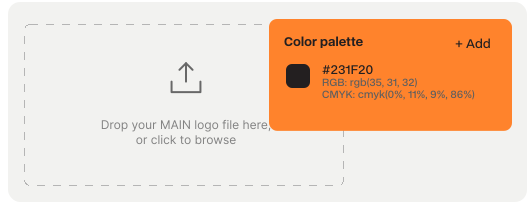
Upload one or more SVG files. Sinqlo auto-generates logo to multiple formats like PNG (web and email sizes), WebP (modern fallback), and PDF (print-ready). Your client gets a link: a permanent, branded portal that always shows the current files. They download the format they need. When you update the logo, the link updates automatically. No resend. No outdated files.
One upload. All formats. Always current.
The workflow shift is straightforward. Old way: export, rename, zip, email. Client asks for a different format, resend. Logo changes, start over. New way: upload once. Deliver a link. Logo changes? The link updates. Client self-serves. You move to the next project.
Your logos stop being scattered files in a Drive folder. They become organized assets that update everywhere at once. Your team sees the current version. Your client sees the current version. Nobody’s asking “which version is this?”
FAQ: SVG vs PNG
Can I use SVG for everything?
No. SVG doesn’t render in older email clients, especially Outlook. If your client uses email, you need PNG as a backup. The safest approach: deliver both.
Which format is smaller: SVG or PNG?
It depends. A simple, flat logo as SVG might be 3–5 KB. The same logo as PNG could be 20–50 KB. But a complex, detailed logo with gradients might be larger as SVG and smaller as PNG. Export both and compare.
Is PNG scalable?
Not without losing quality. PNG is made of pixels, so enlarging it past its original size makes edges soft and blocky. If you need a bigger PNG, export a new one from the vector source at the size you need. SVG has no such limit.
Is SVG higher quality than PNG?
For logos, yes. An SVG stays perfectly sharp at every size, while a PNG is only sharp at the size it was exported. For photos, PNG (or JPG) is the better choice, because SVG isn’t designed for pixel images.
Is SVG or PNG better for printing?
SVG, because it’s vector and prints sharp at any size. In practice, most print shops ask for PDF, which is also vector. If you have to send a PNG for print, export it at 300 DPI at the final printed size.
What about JPG?
Skip JPG for logos. It has no transparency, so the logo always sits on a white or colored box, and its compression blurs sharp edges. Use JPG for photos, PNG for raster logos, and SVG for everything that can be vector.
Do I need to deliver both SVG and PNG to every client?
Yes, unless they specifically say otherwise. Many clients use logos in multiple places: web, email, print, presentations. Each place has different format needs.
How do I know which format my client actually needs?
Ask. It takes 30 seconds and saves hours of back-and-forth. “I’ve prepared your logo in SVG for web, PNG for email, PDF for print, and WebP for modern web. Which of these do you need?” Most of the time, they’ll want all of them.
Conclusion: Pick the Right Format (Or Generate Them All)
SVG is for web and scalable delivery. PNG is for email and universal compatibility. PDF is for print. WebP is a modern fallback.
But here’s the thing: don’t pick one and hope it works everywhere. Generate all of them. Your client gets options. You save time. Your logos stay organized and always current.
One upload. All formats. No manual export. No resend. That’s how design studios deliver logos today.
Ready to stop exporting manually? See how a Sinqlo Brand Link works. It delivers every format automatically and updates instantly when the logo changes. Start free.